HydroModeller
Download and start with FreeFloating.exe1 Introduction
FreeFloating is a comprehensive 3D pre- and post-processing tool designed for wave diffraction and radiation analysis, leveraging the power of the open-source solver HAMS. It provides a user-friendly interface that simplifies the process of modeling all essential data required for the hydrodynamic analysis of floating offshore structures. Through this interface, users can easily define parameters for complex geometries, environmental conditions, and physical properties, facilitating efficient and accurate simulations. Additionally, the tool features a 3D model view, allowing users to visualize the structure in detail, inspect geometries, and ensure the accuracy of the model setup before running simulations.
Once the analysis is complete, FreeFloating generates key hydrodynamic coefficients, including response amplitude operators (RAOs) for added mass, damping coefficients, excitation forces, and motion responses. These results are not only presented in detailed numerical form but can also be visualized through graphical plots. This allows users to intuitively interpret the behavior of the structure under various environmental conditions, such as waves, currents, and wind forces.
2 User interface
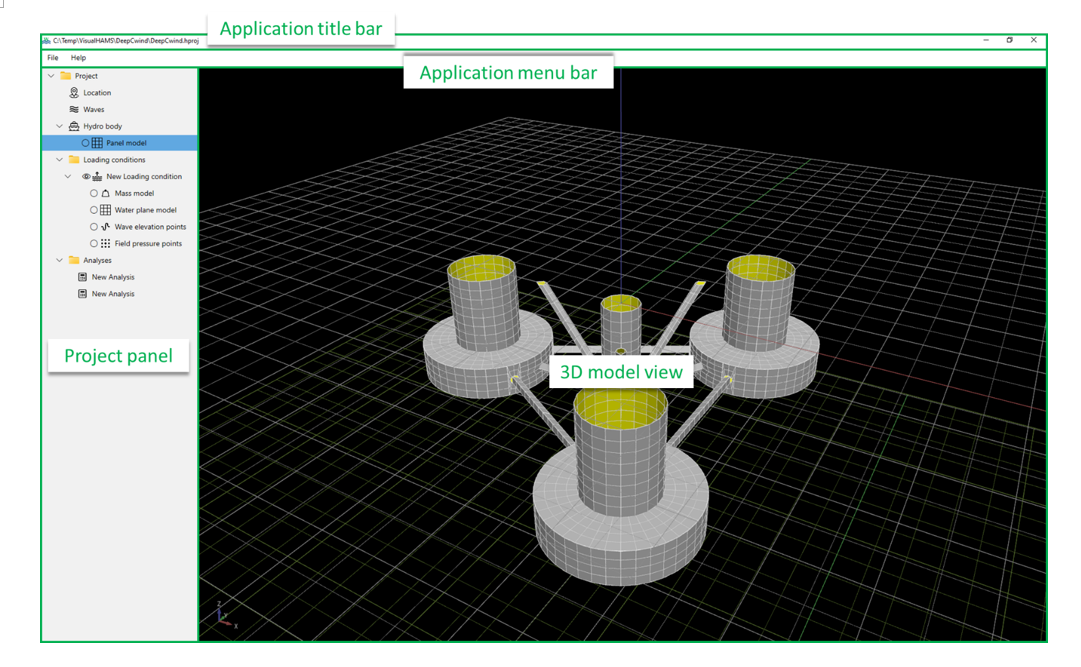
The user interface consists of 5 main area, including
- Application title bar
- Application menu bar
- Project panel
- 3D model view
2.1 Application title bar
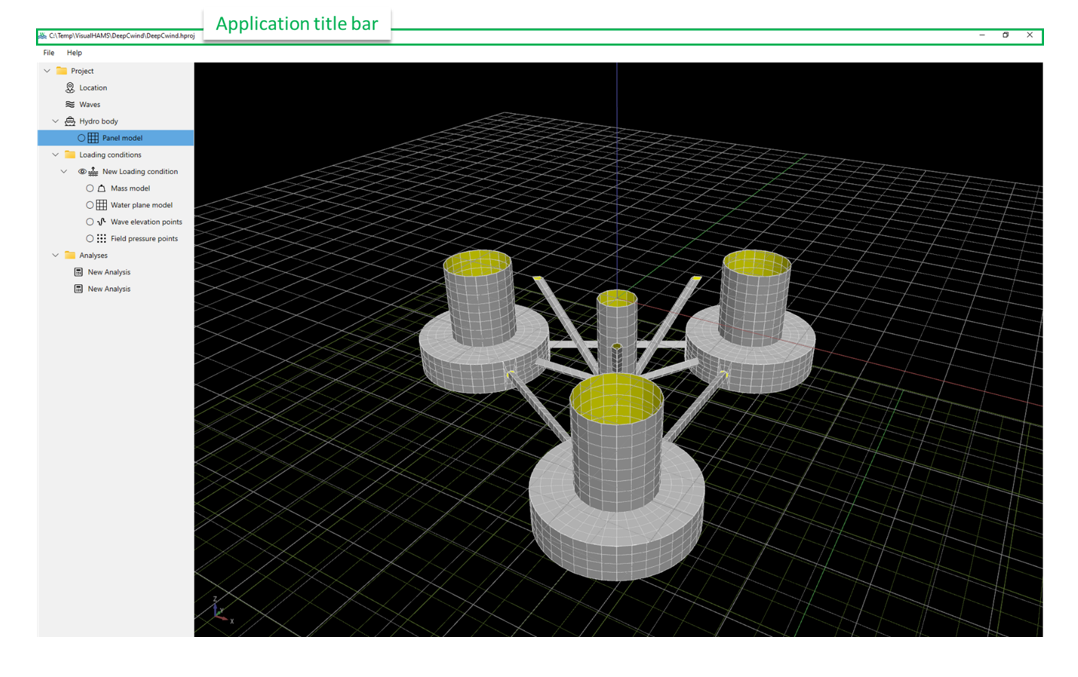
Application title bar is on the top of the user interface, showing the basic information of the project, such as the path of the project file.
2.2 Application menu bar
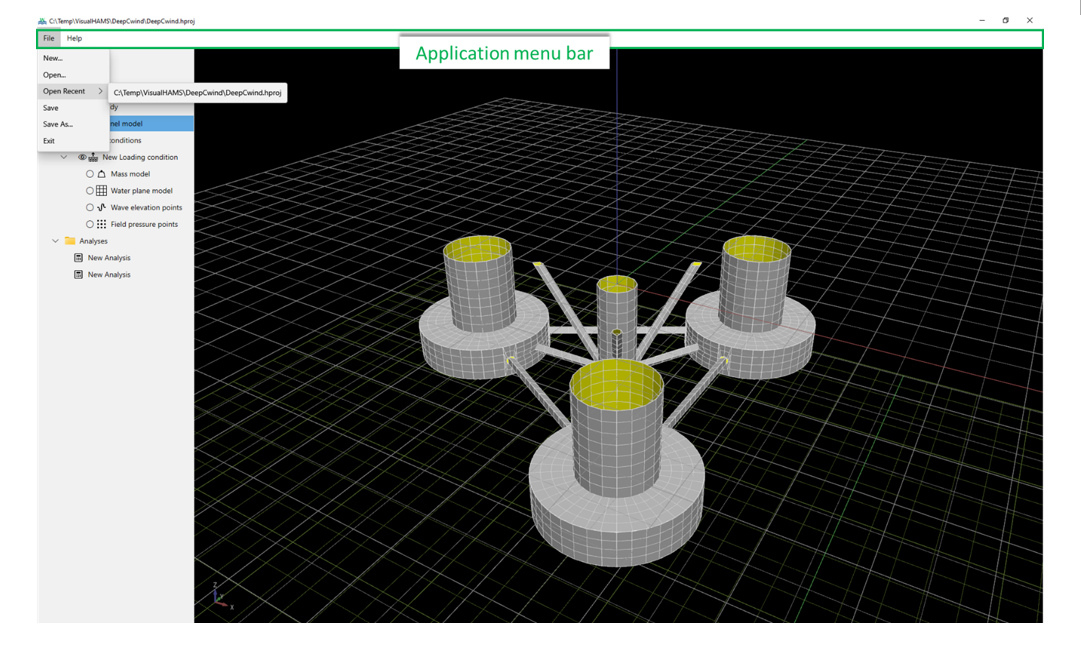
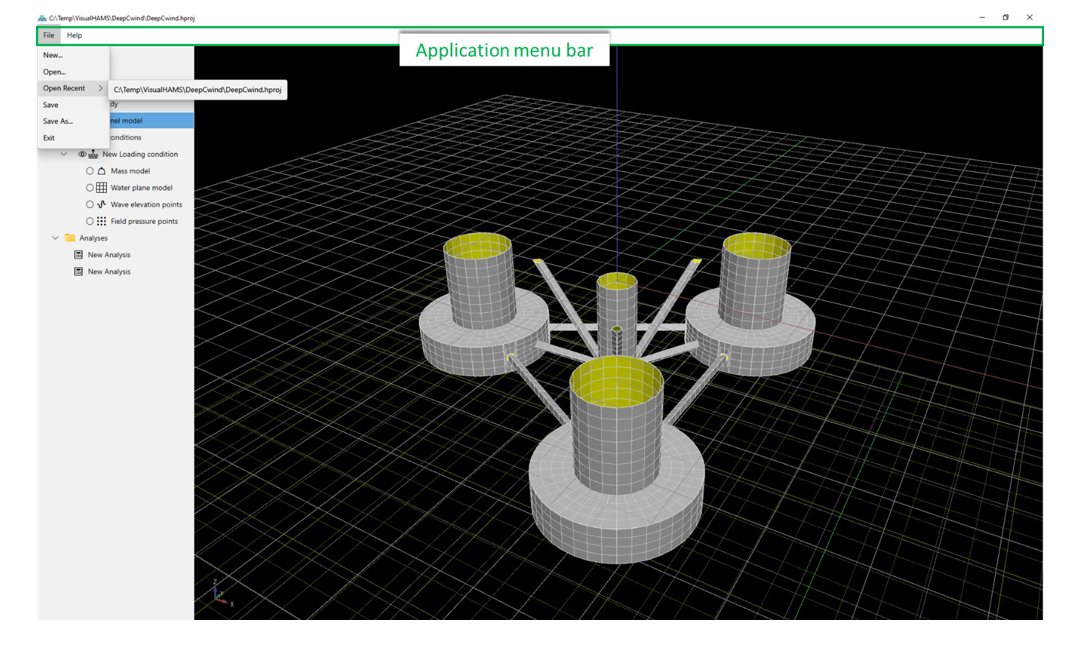
Application menu bar is composed of drop-down menus that contain a list of grouped menu items for the functionality related to the application or a project.
File menu contains the functionality to create/open/save a project. The recent projects can be remembered and reopened from the Open Recent list.
2.3 3D model view
In the 3D model view, users can explore and interact with 3D representations of basic shapes, full floating offshore structures, and their surrounding environments. This feature offers a dynamic, immersive experience, enabling users to thoroughly understand the geometry and structural layout of their models. Users can rotate, zoom, and pan to examine the model from various angles and perspectives. These interactions are managed through the mouse’s left, middle, or right buttons, with additional control options available by using the Ctrl, Shift, or Alt keys for more precise navigation and functionality.
2.4 Project panel
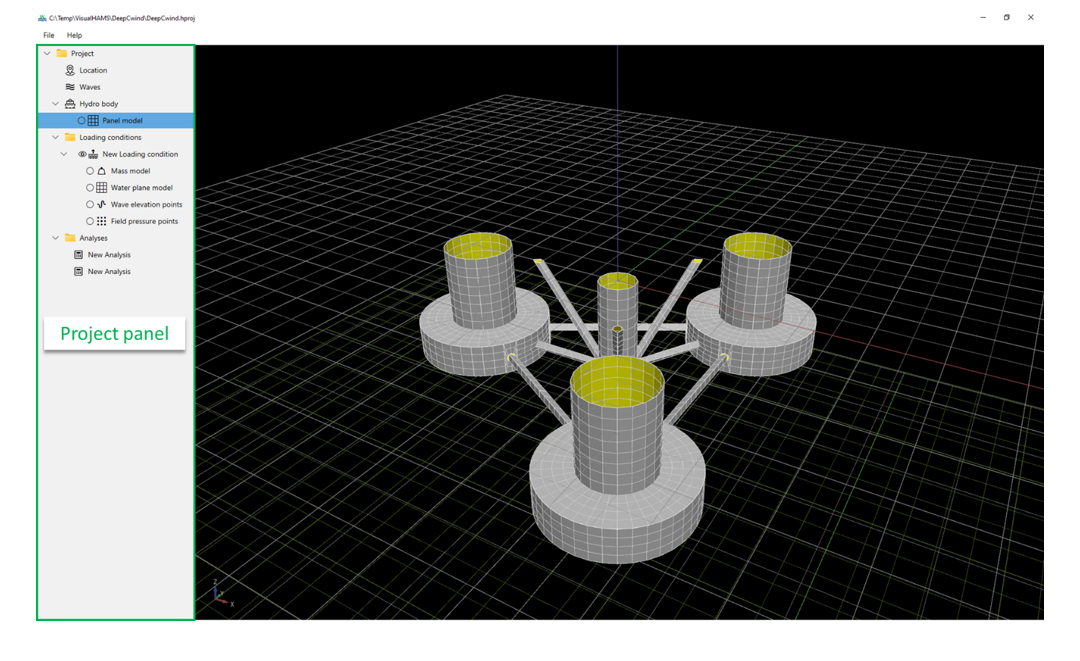
Project Panel, located on the left side of the main user interface, contains all the models related to a project. This includes settings for the location, waves, hydro body, loading conditions and analyses, providing easy access to essential project elements for efficient navigation and management.
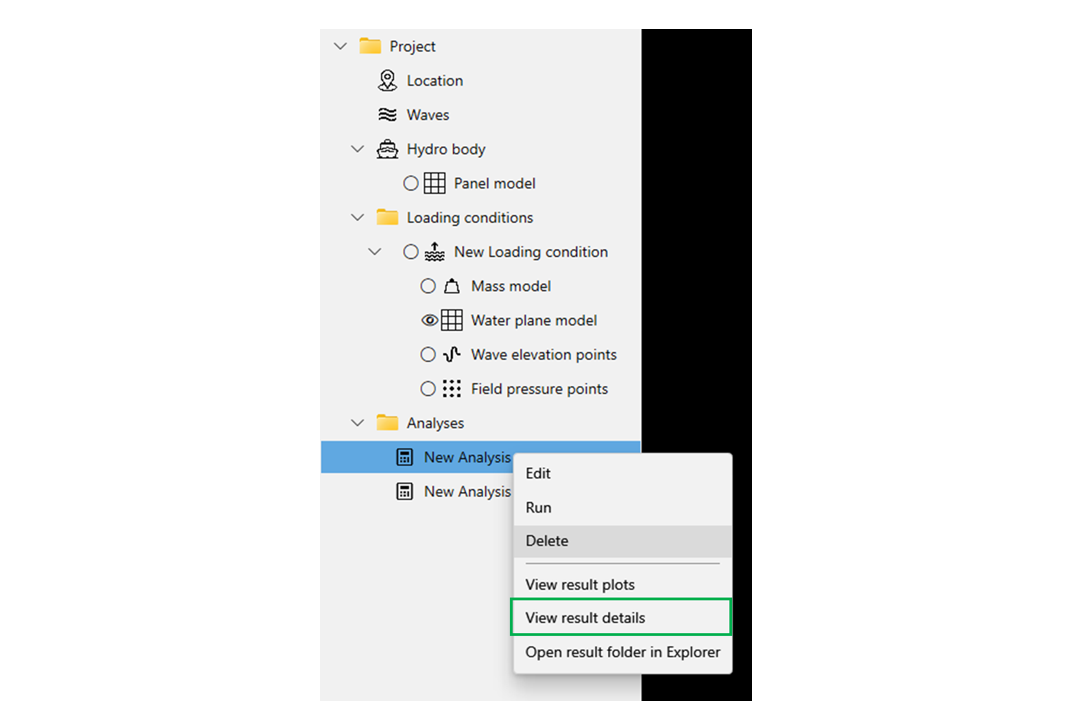
Project panel is structured as a hierarchical tree, organizing all components of the model for easy access and management. Each node in the tree represents a different part of the project, such as geometry elements, settings, or simulation results. A visibility symbol, either 👁 for visible or ◯ for hidden, is displayed in front of each node, allowing users to quickly toggle the display of objects within the 3D model view. In addition to controlling visibility, users can right-click on any node to access a comprehensive context menu. This menu provides all the necessary modeling functionalities.
2.4.1 Location
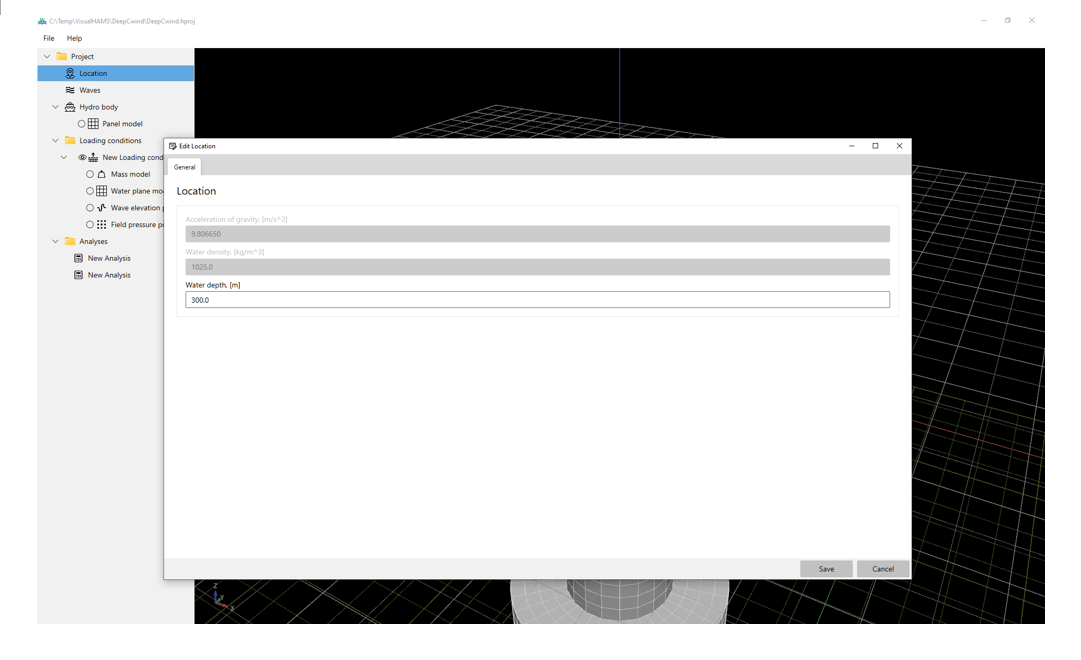
The water depth can be defined in the Location settings, while the acceleration due to gravity and water density are set to their default values.
2.4.2 Waves
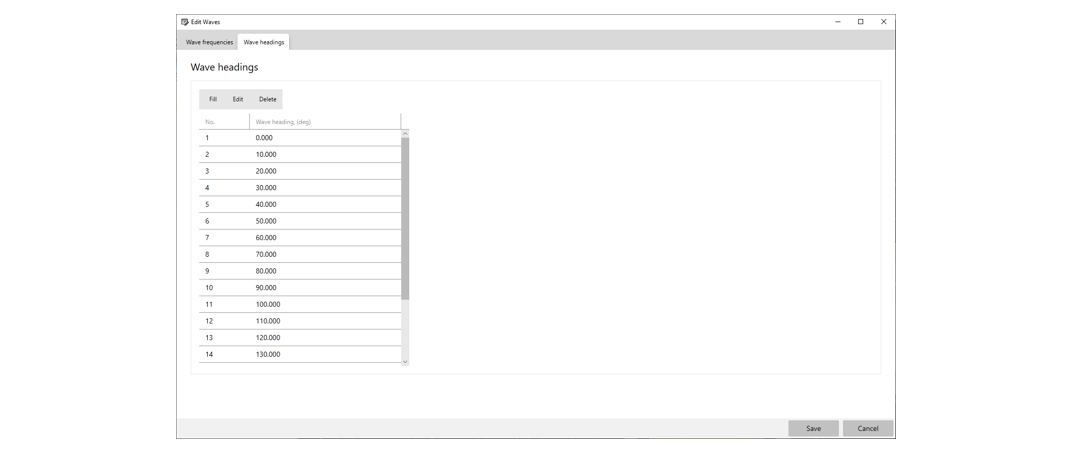
In the Waves settings, you can specify wave frequencies and directions.
Wave frequencies can be defined by inputting the wave period, wave frequency, or wave length.
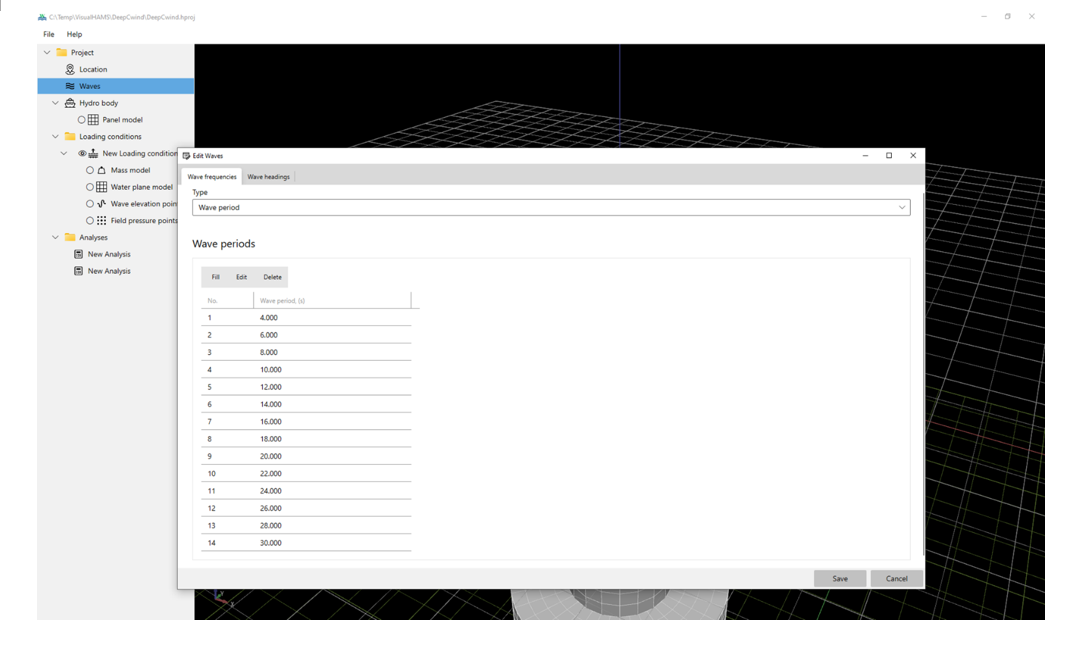
Wave directions are specified as angles measured counterclockwise from the X-axis. A wave direction of 0 degrees indicates that the waves are moving along the positive X-axis.
2.4.3 Hydro body
Hydro body includes the panel model for wave diffraction and radiation analysis.
2.4.3.1 Panel model
Panel model files in formats of WAMIT, SESAM, HAMS, Abaqus, and AQWA are supported.
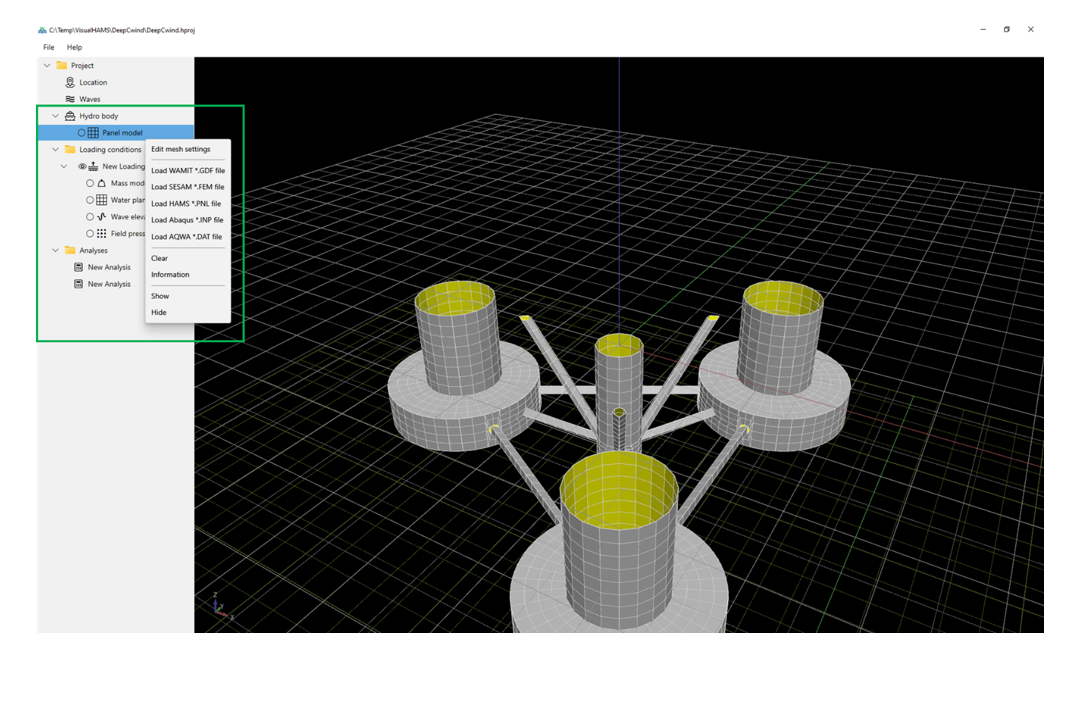
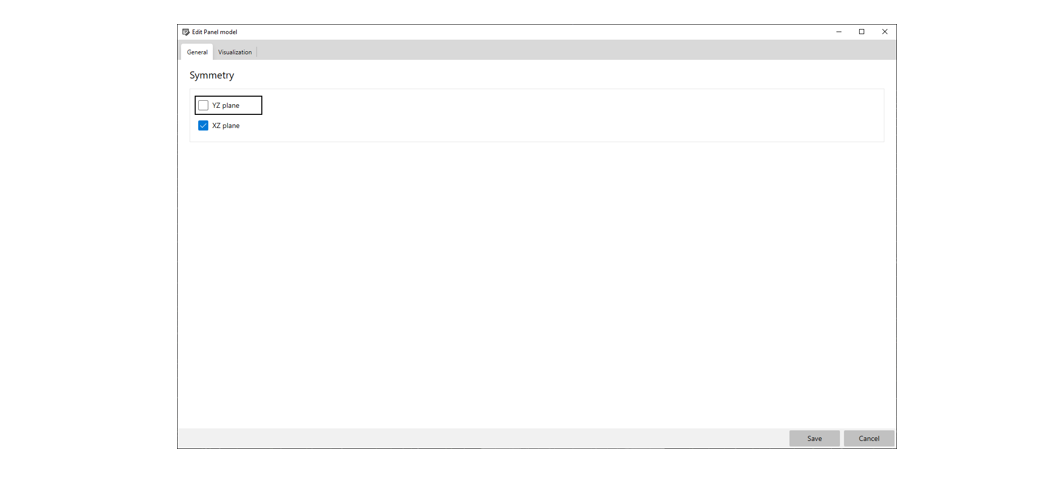
The panel mesh settings can be adjusted in the mesh settings dialog, where you can modify options for symmetrical planes and visualization.
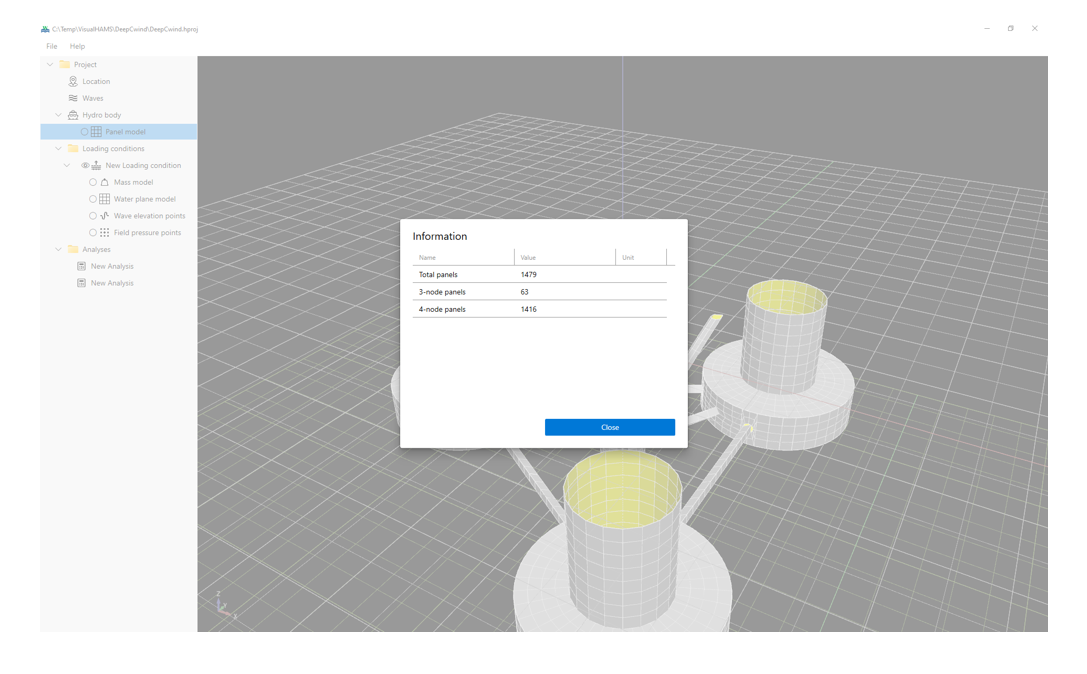
The panels and nodes of a panel model can be cleared using the function available in the context menu. Additionally, basic information about the model can be accessed through this menu.
2.4.4 Loading conditions
Loading conditions can be added to the “Loading Conditions” folder.
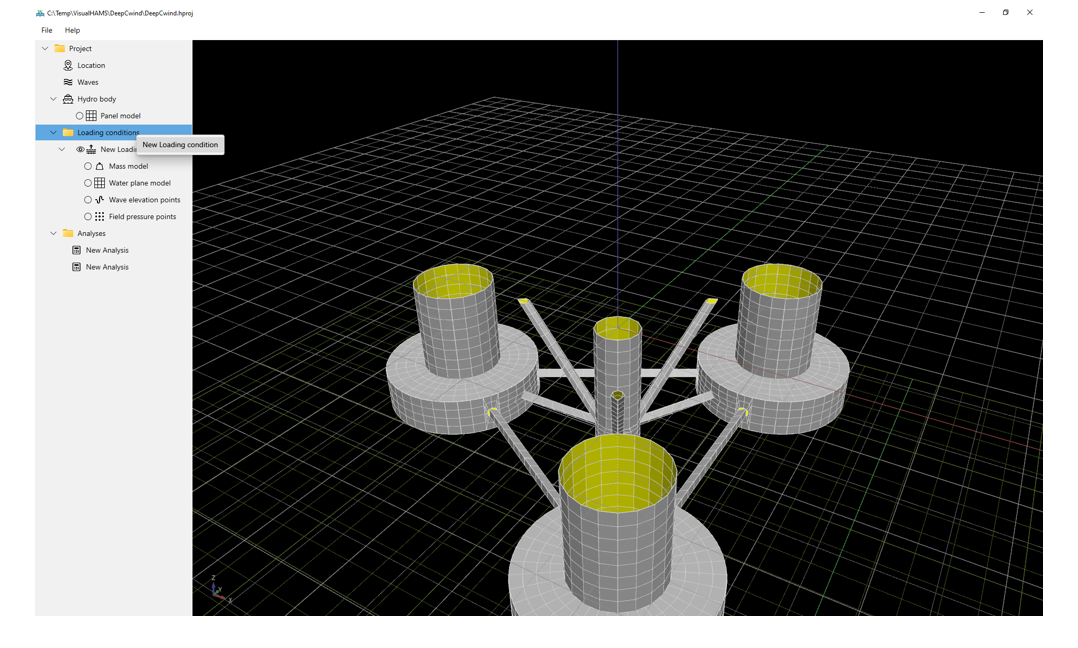
2.4.4.1 Loading condition
The settings of a loading condition include: general settings, damping data, external restoring data and visualization settings.
The general settings consist of the loading condition’s name and the waterline level (Z).
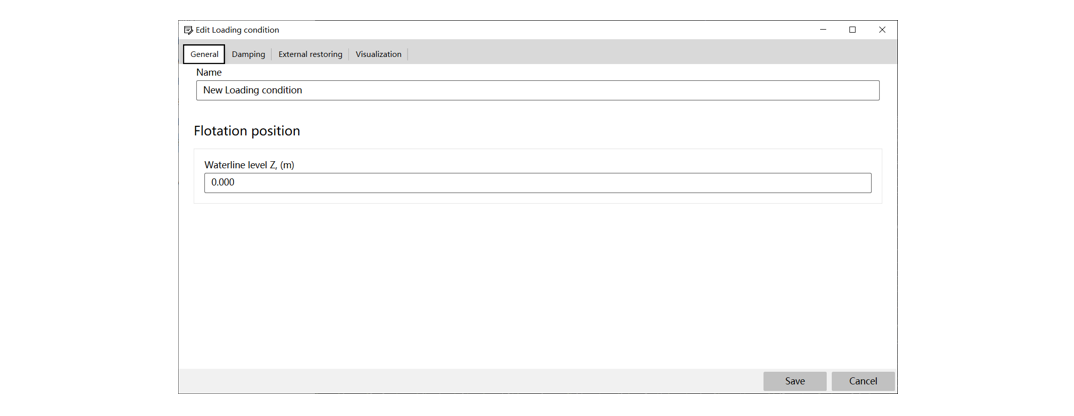
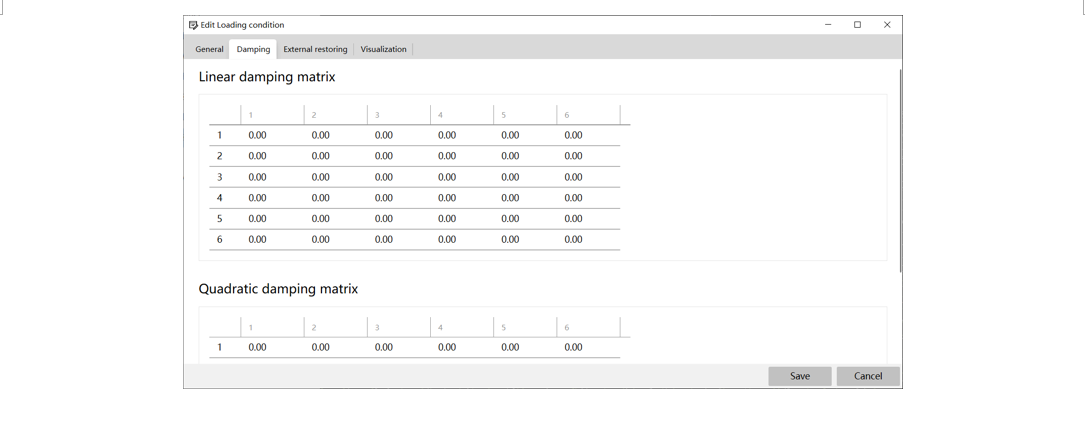
Users can configure both the linear damping matrix and the quadratic damping matrix for the loading condition.
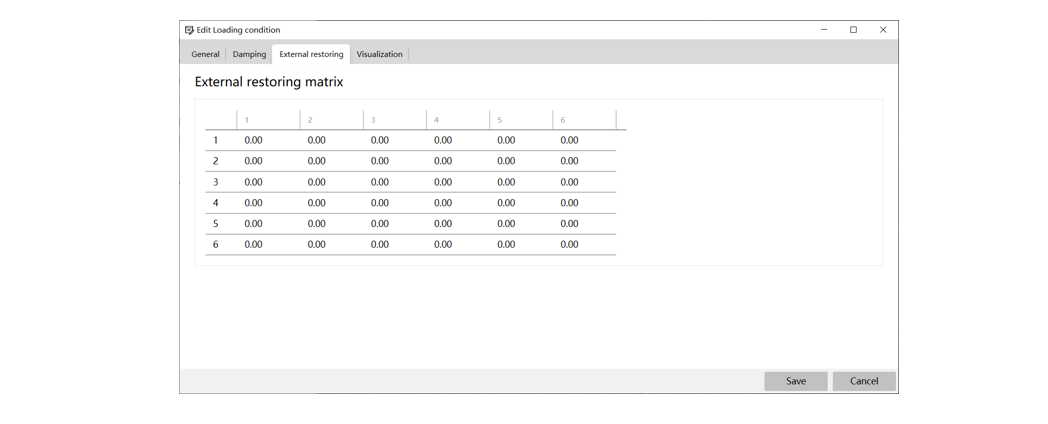
The external restoring matrix can also be specified to account for the influence of mooring lines.
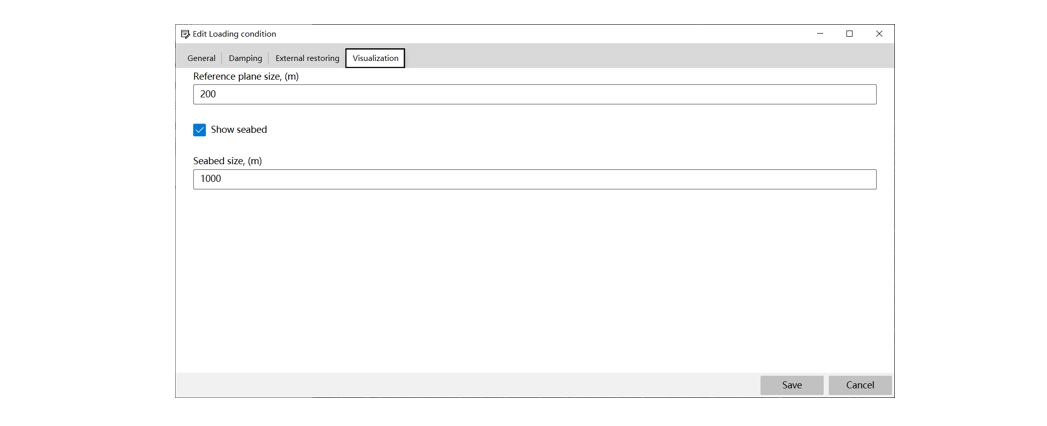
A reference plane and seabed can be rendered for better visualization of the floating structure using the settings in the “Visualization” tab.
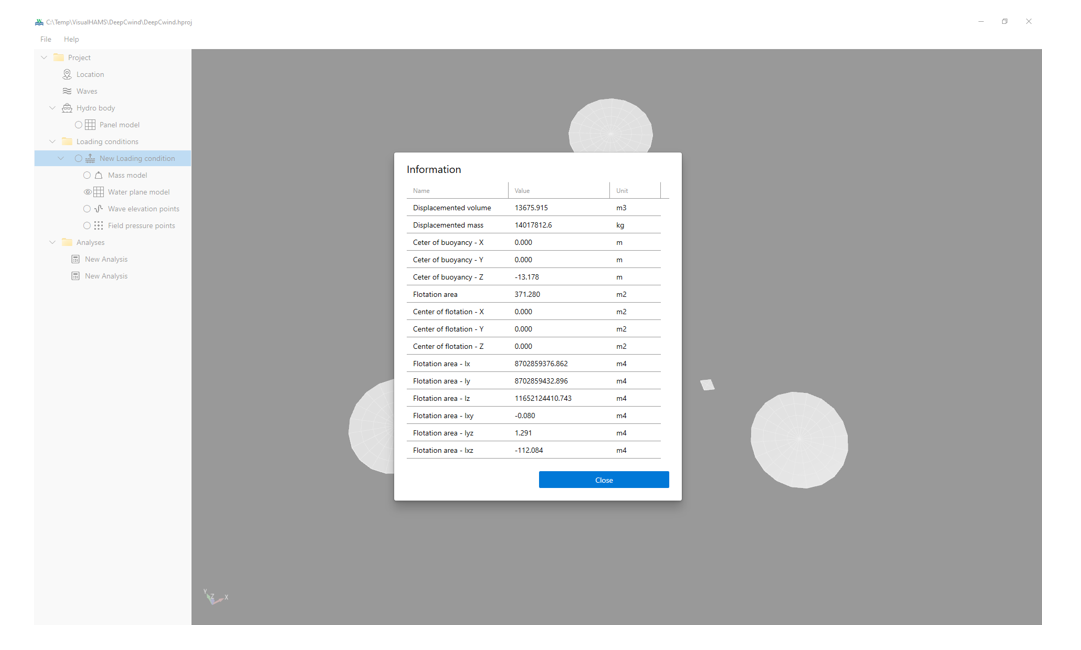
Key details of a loading condition, such as displacement, center of buoyancy, and flotation area, can be displayed through the context menu.
2.4.4.1.1 Mass model
A mass model is necessary for each loading condition. The mass data can be entered manually by the user or estimated based on the displaced water.
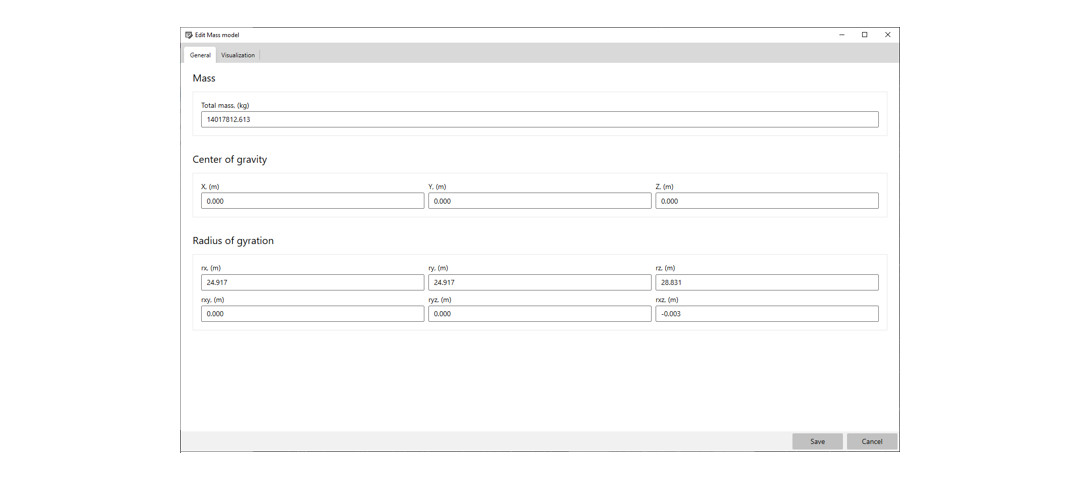
When the mass model is estimated based on displaced water, the total mass, center of gravity, and radii of gyration are calculated accordingly. Users must then fine-tune the mass data, including the center of gravity and radii of gyration, to ensure that the mass model of the floating offshore structure is reasonable.
2.4.4.1.2 Water plane model
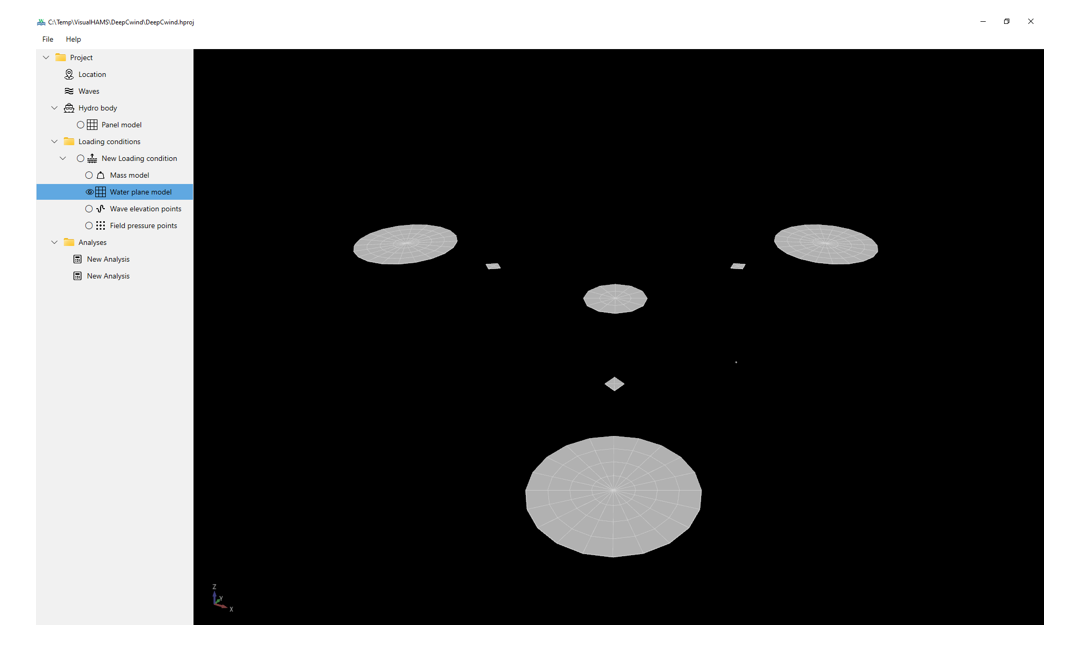
A water plane model can be added to a loading condition to eliminate the irregular frequencies.
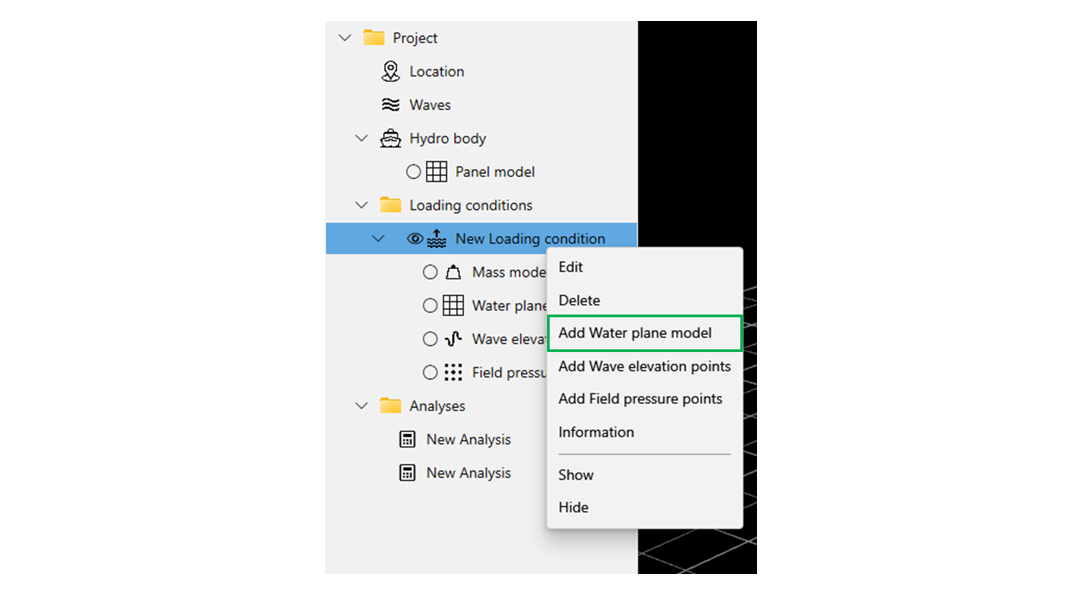
A water plane model is similar to a panel model, and can be imported from panel mesh files in formats such as WAMIT, SESAM, HAMS, Abaqus, and AQWA. However, it retains only the panels at the top Z level.
2.4.4.1.3 Wave elevation points
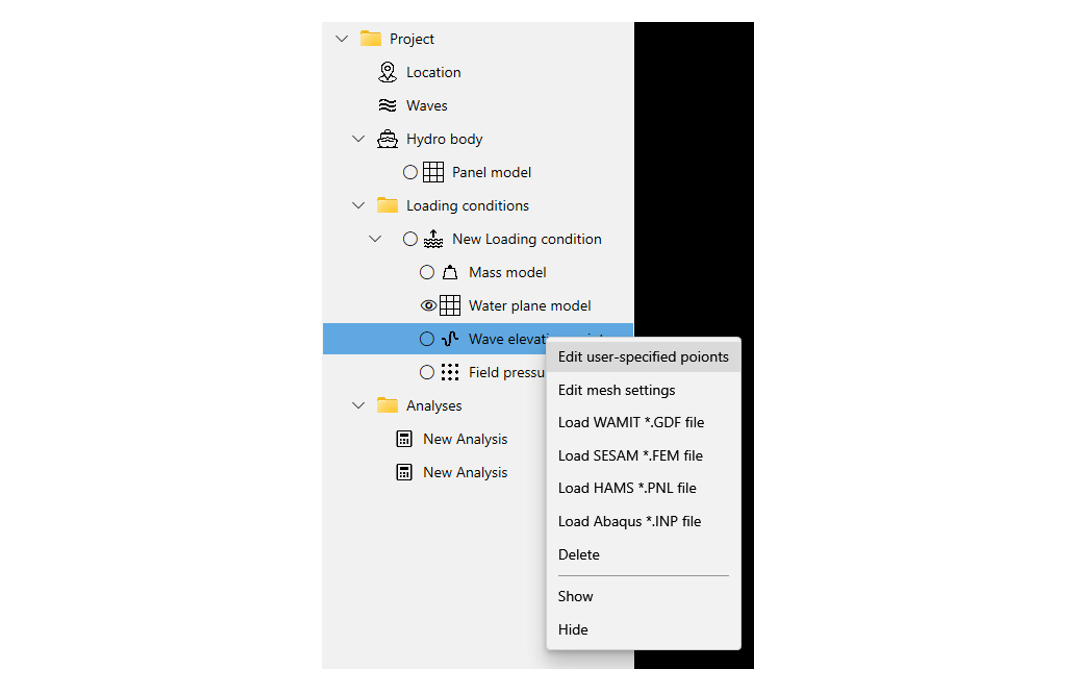
Users can define points on the free surface to assess the wave elevation RAO. Similar to the water plane model, a panel mesh can be imported from mesh files in formats such as WAMIT, SESAM, HAMS, Abaqus, and AQWA. Alternatively, individual points can be manually specified by the user.
2.4.4.1.4 Field pressure points
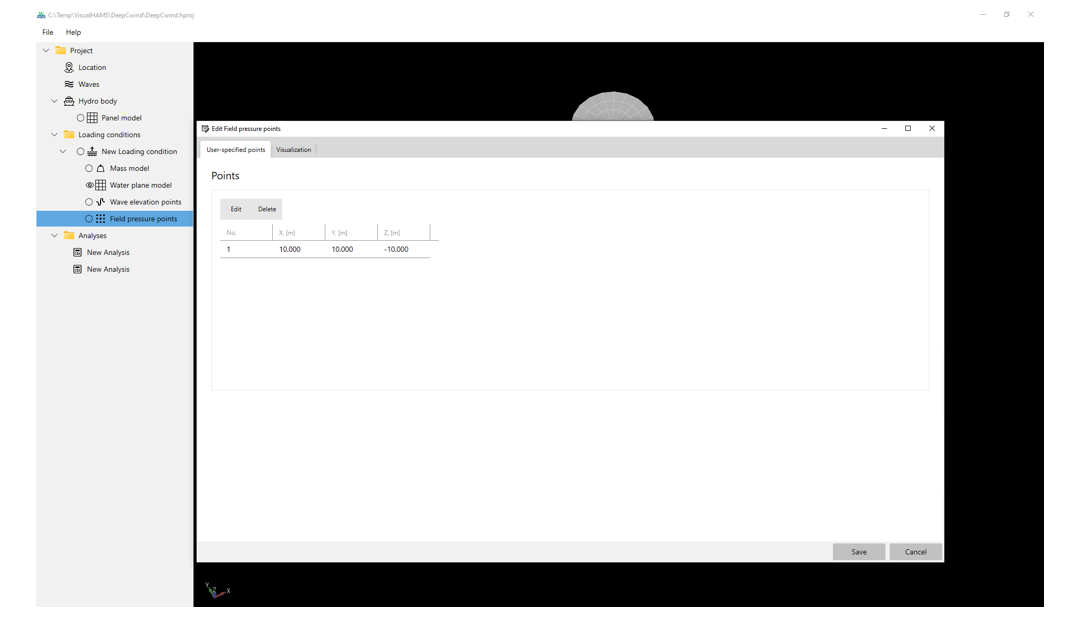
Users have the ability to define specific points within the fluid field to evaluate the pressure RAO, which provides insight into how pressure fluctuates at various locations due to wave interactions.
2.4.5 Analyses
2.4.5.1 Analysis
Wave diffraction and radiation analysis can be performed for a single loading condition. Users can turn on or off the options for specific needs, including
- Added mass of the 0 and infinite frequencies
- Remove irregular frequencies
- Thread number
A water plane model is necessary in the loading condition to eliminate irregular frequencies. The thread number controls the maximum number of parallel threads, with a higher number speeding up the calculation process significantly.
Once the settings are correctly configured, the analysis can be started from the context menu.
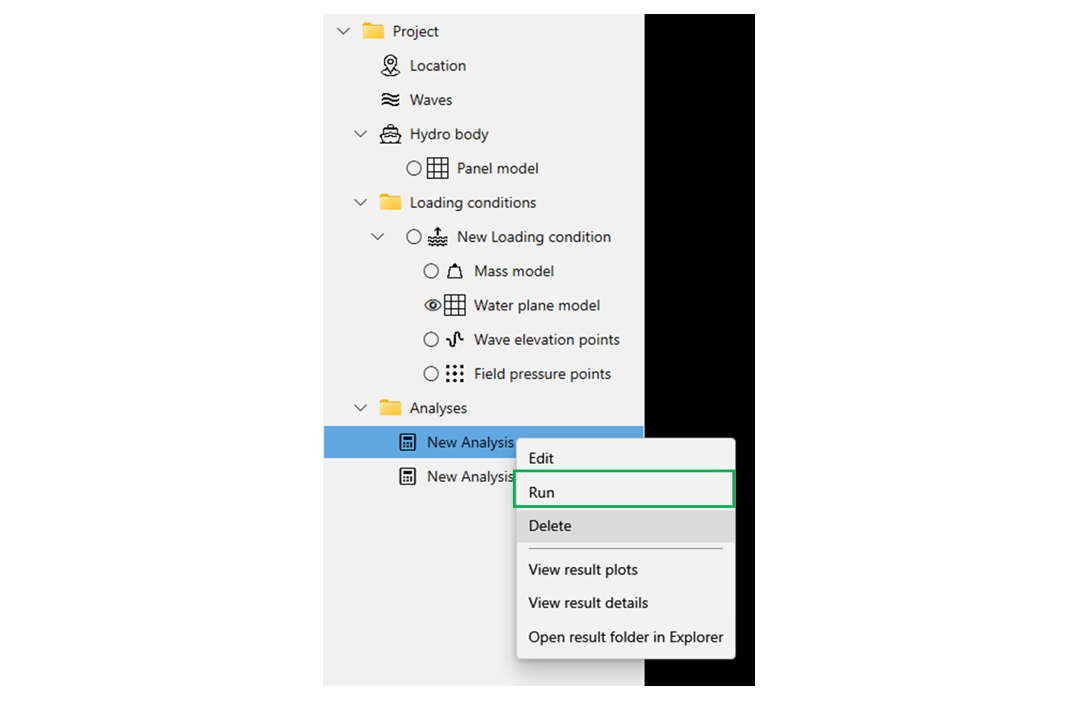
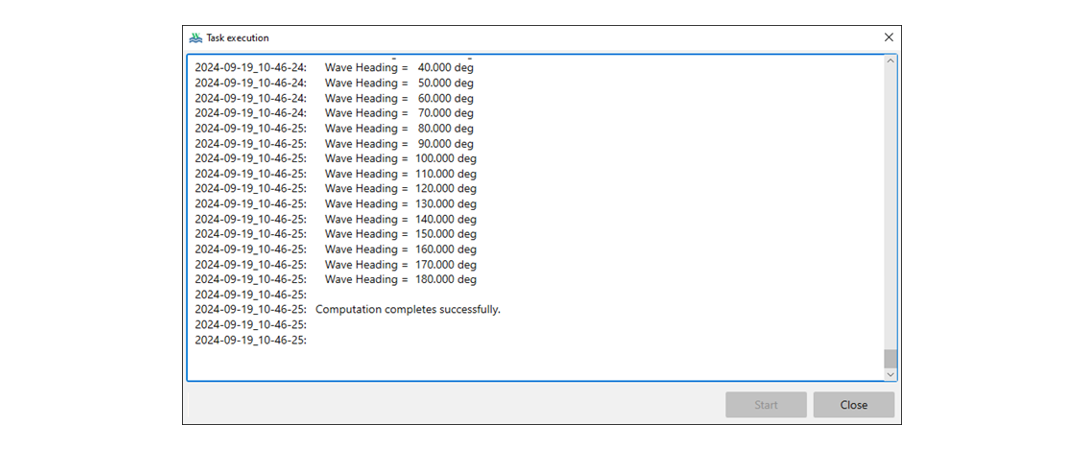
The task execution dialog will display detailed processing information, providing real-time updates on the progress of the analysis. This includes key details such as the current stage of the process and any relevant system messages or notifications.
Once the analysis is successfully completed, the result plots can be accessed and viewed via the context menu.
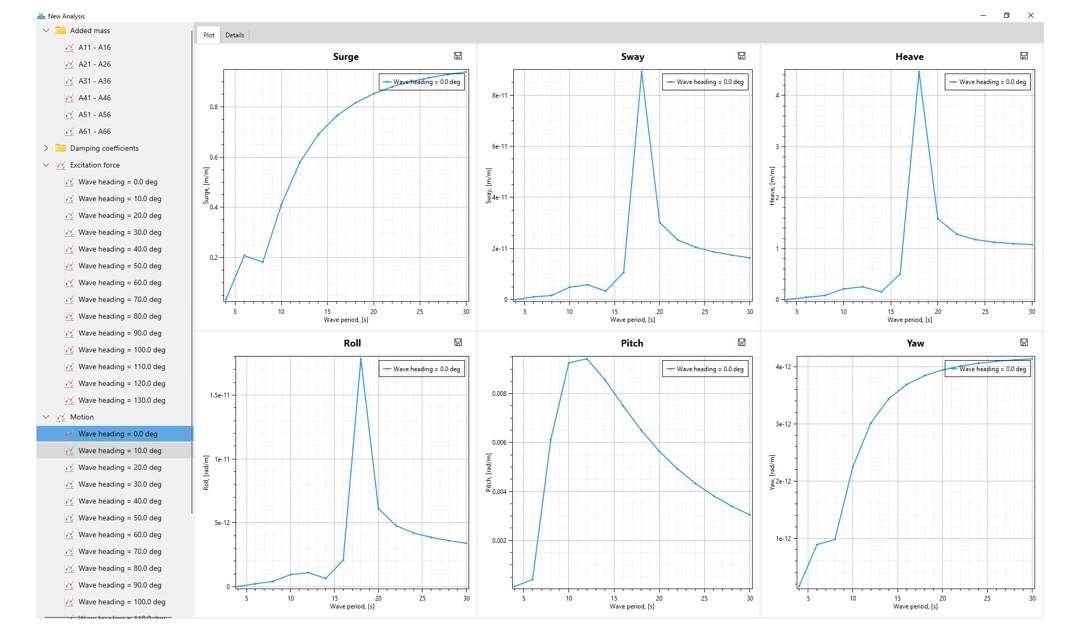
A summary file containing the results in text format is also provided.